

Introduction to WooCommerce Security
Why WooCommerce Security Matters
WooCommerce is a WordPress plugin that lets you turn your website into an online store in a matter of minutes, which makes it incredibly popular. This popularity comes with a price: it makes WooCommerce a natural target for attackers.
Table of Contents
- Introduction to WooCommerce Security
- Essentials for Setting Up a Secure WooCommerce Site
- Hardening WordPress Security
- Payment Gateway Security
- Protecting Customer Data and Compliance
- Email Security and Automation
- Preventing Card Attacks on WooCommerce Websites
- Creating Regular Backups for Disaster Recovery
- Wrapping Up
- List of Recommended Plugins, Payment Gateways and Services
Furthermore, most WooCommerce store owners are using self-managed hosting services, rather than relying on a big platform such as Shopify. This adds a big responsibility because you’re handling security yourself instead of relying on a platform’s built-in protections.
Where to Start
Security for your WooCommerce store starts with protecting your customers. When you handle payments and store personal information, keeping that data safe isn’t optional. A breach puts your customers at risk and damages the trust they have in your business. That trust directly affects whether people come back, recommend you to others, and even how search engines rank your store.
Beyond protecting data, a secure store also defends against attacks like brute force attacks and other security threats that try to break into your site. These attacks are common and can take your store offline or worse. The good news is that most of these threats are preventable through practices that aren’t complicated once you know what to do.
The foundation of security comes down to one thing: keeping everything updated. WordPress, your plugins, and your themes all need regular updates and security patches. When you stay on top of these, you close the doors that attackers try to use.
This guide walks you through each layer of security your WooCommerce website needs. You’ll learn what to set up, why it matters, and how to maintain it without needing to become a security expert. By the end, you’ll have a clear picture of what needs protecting and exactly how to do it.
Essentials for Setting Up a Secure WooCommerce Site
Choose a Web Host
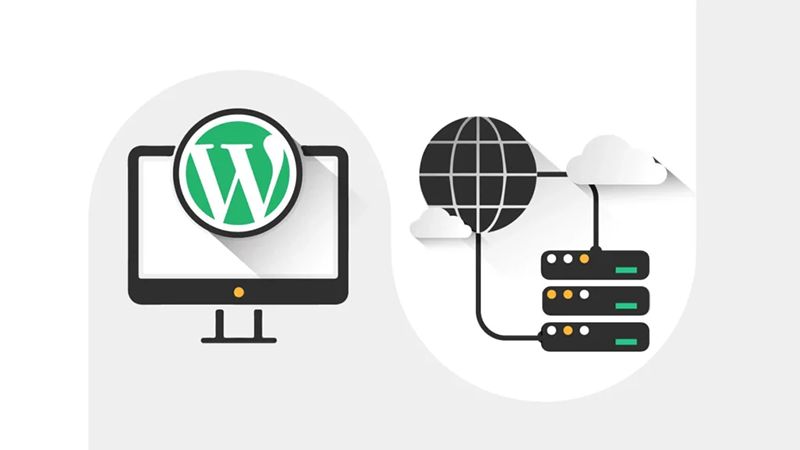
Start by choosing a reputable hosting provider that offers secure and fast servers with enough resources to handle your store, modern infrastructure, and a user-friendly control panel.
I’ve had good experiences with Site Ground and Scala Hosting. Both offer a fast and modern infrastructure, an intuitive control panel (Site Tools with SiteGround and SPanel with Scala Hosting), and great online support by humans (I hate AI chatbots when it comes to support)
I won’t list the hosting company names not to choose from. But, avoid cheap shared hosting, which are usually not as secure and fail to deliver the performance that an online store needs.
Finally, when choosing a web host, try to pick ones that provide an object caching service like Redis or Memcached. These caching tools store frequently accessed data in memory, allowing your site to serve pages much faster without repeatedly querying your database.
This is especially important for WooCommerce stores with large product catalogs or high traffic, as caching dramatically reduces server load and improves customer experience. Redis and Memcached are particularly effective for speeding up checkout pages, product searches, and product filters.
Use Cloudflare
On top of choosing good hosting, add Cloudflare as an extra layer of protection.
Cloudflare sits between your visitors and your store, filtering out malicious traffic and protecting you from attacks.

Its Web Application Firewall (WAF) blocks most attacks before they even reach your WooCommerce store, rate limiting stops attackers from overwhelming your store with repeated requests, and bot protection keeps bad bots from draining your server resources.
It also speeds up your site by caching static assets on the edge network. Even the free plan provides solid protection and speed improvements if used with a plugin like Super Page Cache.
Protect Your Site with an SSL Certificate
An SSL certificate is essential for any WooCommerce store. It encrypts the data traveling between your site and your customers, protecting sensitive information like credit card numbers, passwords, and personal details. Without SSL, this information moves unencrypted across the internet where attackers can intercept it.
SSL is now an industry standard for any online store and keeping sensitive data secure. Customers expect to see the padlock icon and “https://” in the address bar. Without it, they’ll question your site’s trustworthiness, and search engines will penalize your rankings.
Most hosting providers offer free SSL certificates through Let’s Encrypt. Let’s Encrypt is a nonprofit organization that provides free, automated SSL certificates to anyone who owns a domain.
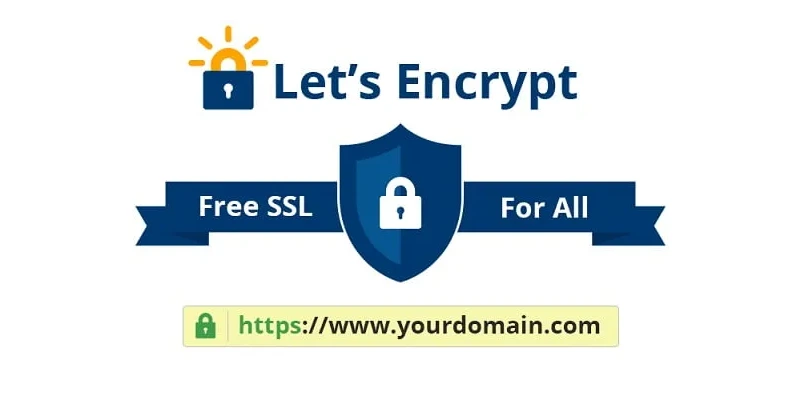
Before Let’s Encrypt existed, SSL certificates were expensive (often $50 to 200+ per year), which meant many small businesses couldn’t afford to secure their sites. Let’s Encrypt changed that by making security accessible to everyone. Their certificates are just as secure and trusted as paid ones and they use the same encryption standards and are recognized by all major browsers. The certificates are valid for 90 days and automatically renew, so you don’t have to worry about them expiring.
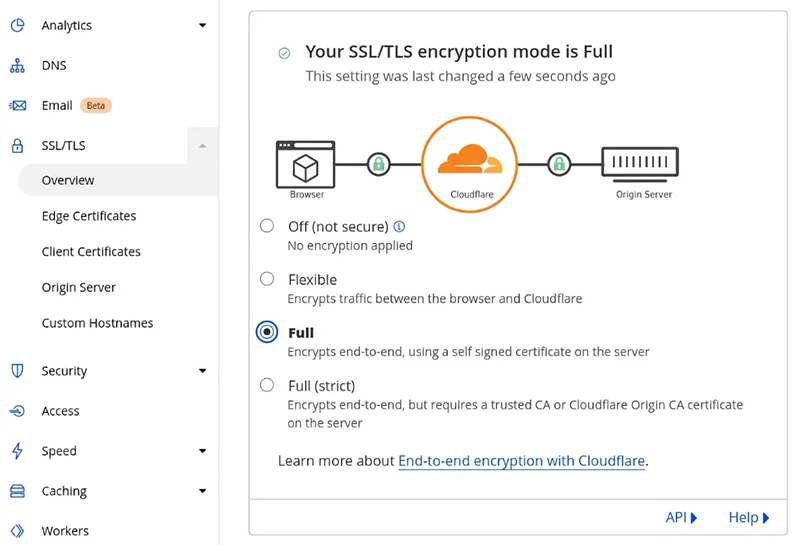
If you’re using Cloudflare, you don’t need to manage SSL yourself.
Cloudflare handles certificate setup and renewal automatically, so your store stays encrypted without any manual work on your part.
Increase Login Security
Use strong passwords and enable two-factor authentication (2FA) for all admin as well as show manager user accounts.
Some WooCommerce sites may prefer to add captcha to their login and registration forms for added protection. I recommend implementing Turnstile if you are using Cloudflare.
Limit login attempts using a plugin like Wordfence or Limit Login Attempts Reloaded.
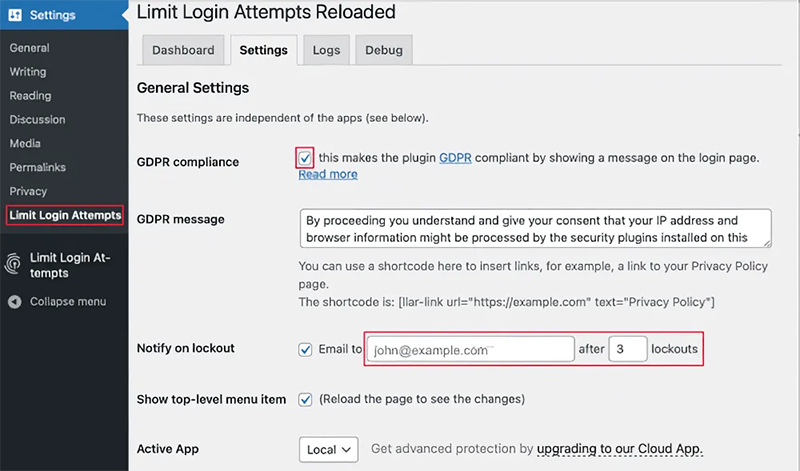
This security measure has a couple of benefits:
- It stops attackers from trying hundreds or thousands of password guesses to break into your site.
- When someone hits the login limit, they get locked out for a while. This usually makes them give up and move on to an easier target.
- Real users typically only need one or two tries to log in, so they won’t be bothered by the limits.
- It helps reduce server load and CPU usage.
Secure Customer Data Collection and Storage
Don’t collect or store credit card information on your own site. Instead, use trusted payment processors like Stripe, PayPal, or Square. When a customer enters their card details during checkout, that data goes directly to these payment gateways, not to your server.
This way, you never handle the sensitive payment information, so you’re not responsible for protecting it. These gateways are already certified secure (PCI-compliant), which means they meet strict security standards.
Only install plugins from trusted sources like the official WordPress plugin repository or well-known developers. Before installing any plugin, read the reviews and check what permissions it requests. If a plugin seems to ask for unnecessary access to customer data, skip it or find an alternative.
Most importantly, delete any plugins you’re no longer actively using. Inactive plugins are still a security risk and can be exploited. Stick to essential plugins only, and keep the number as low as possible to reduce your attack surface.
Hardening WordPress Security
Having worked on countless number of WordPress sites running WooCommerce, I can clearly tell that the following precautions block 90% of the security threats and give you a peace of mind.
Install a Well-known Security Plugin
There are a couple of security plugins that you can rely on. These are Wordfence, Sucuri, Malcare. They work pretty well and do most of the work almost automatically.
The important point is using only a single security plugin. Otherwise they can conflict and cause issues.
If you use Wordence, ensure to enable the “Extended Protection” by clicking the Optimize the Wordfence Firewall button.
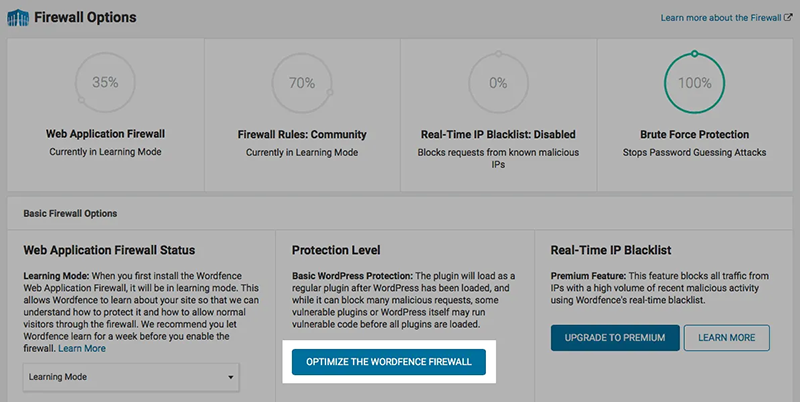
Regularly scan your WordPress and keep an eye on the scan results.
Disable XMLRPC
XML-RPC is a specification that enables communication between WordPress and other systems, allowing applications outside WordPress to interact with it remotely.
It was originally useful for posting content (mainly for blogs) from desktop clients and mobile apps before WordPress had better options.
When you are running a WooCommerce store, you won’t need XMLRPC for any of the e-commerce functionalities. Furthermore, XML-RPC creates security vulnerabilities and it can make your WordPress site vulnerable to brute force attacks and DDoS attacks.
The easiest way is to install the Disable XML-RPC plugin (developed by Philip Erb). Just activate it, and XML-RPC will be disabled.
Change Default Login URL
No matter what you do, your WordPress website will receive countless number of login requests per day. This is not only a security threat, but also causes high server loads and decreases your site’s performance.
There is a very simple solution, which is to change the default login URL from /wp-admin/ to a hard-to-guess, customized URL. To do this, simply install the WPS Hide Login plugin and proceed with the simple setup.
Ensure Regular Updates
WordPress and WooCommerce are not a one-time install and forget type of platform. They require ongoing maintenance and regular updates to stay secure, perform well, and benefit from new features. Updates patch security vulnerabilities, fix bugs, and improve compatibility.
Set a routine to check for updates at least monthly. Updating WordPress core, plugins, and themes is critical because it patches security vulnerabilities that hackers actively exploit and helps with maintaining compatibility and fixing bugs.
PHP version updates are equally important. They improve performance, add security patches, and ensure your site runs smoothly with current plugins and themes. Staying on outdated PHP versions can eventually make your site incompatible with newer tools and leave it exposed to attacks.
I highly recommend performing a backup using UpdraftPlus plugin before attempting any updates. These backups let you restore your site if an update causes problems.
Also, avoid using automated updates and manually update them one at a time instead of all at once. This makes it easy to identify which plugin caused an issue if something goes wrong.
Payment Gateway Security
Your payment gateway is the bridge between your customers and their bank accounts, so it must be completely trustworthy.
Choose established payment processors like Stripe, PayPal, Square, or 2Checkout that are PCI-compliant and have strong security certifications.
These gateways handle encryption and fraud protection so you don’t have to.
Make sure your chosen gateway offers features like tokenization (storing a secure token instead of the actual card number) and supports 3D Secure authentication for extra verification.
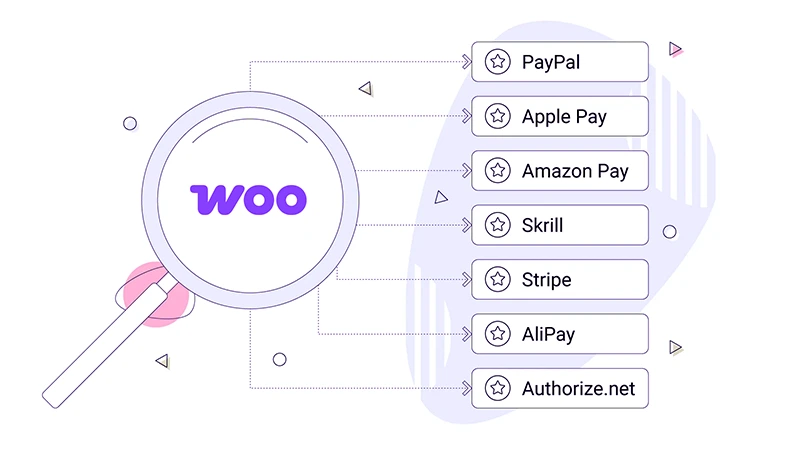
Always use HTTPS on your entire site, especially the checkout page, so customer payment information is encrypted during transmission.
Regularly check that your payment gateway connection is working properly and monitor your transaction logs for any suspicious activity. If you notice unauthorized charges or failed transactions, contact your payment processor immediately.
Finally, never attempt to store or handle raw credit card data yourself. Always let the payment gateway handle that responsibility.
Protecting Customer Data and Compliance
Data protection laws like GDPR (General Data Protection Regulation) require you to protect customer information and give customers control over their data.
If you serve customers in the EU or collect their data, you must comply with GDPR. This means having a clear privacy policy that explains what data you collect and why, getting explicit consent before collecting personal information, allowing customers to request their data or delete their account, and securely storing everything.
Other regions have similar laws. For example, California has CCPA, Canada has PIPEDA, and Australia has the Privacy Act.
Check which regulations apply to your business based on where your customers are located. The consequences of non-compliance are steep, including hefty fines and loss of customer trust.
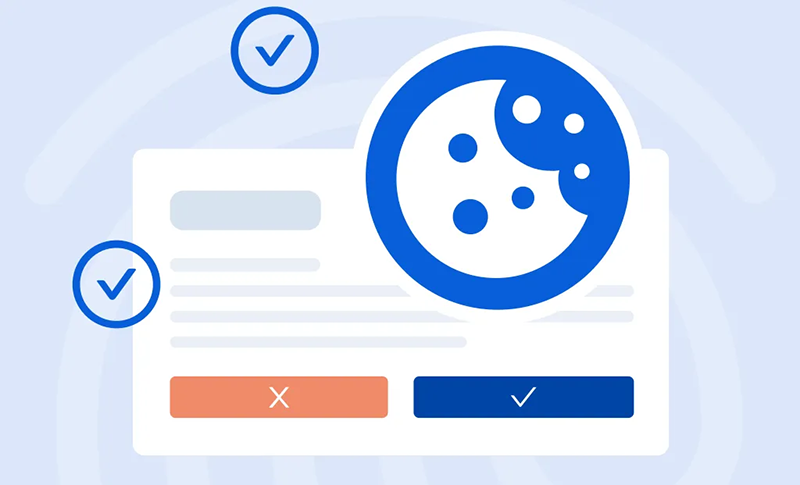
Most websites use cookies for analytics (like Google Analytics), advertising pixels, or storing user preferences. Under GDPR and similar laws, you must get visitor consent before using non-essential cookies.
A cookie consent plugin like iubenda or CookieYes displays a banner asking visitors to accept or reject cookies before they’re set. This is legally required in the EU and many other regions. Even if you’re not in the EU, it’s good practice to be transparent about tracking.
Basically, treat customer data as something you’re protecting on their behalf, not something you own.
Email Security and Automation
Email is how you communicate with customers about orders, shipping, and promotions, so it needs to be secure.
Use a dedicated email service like SMTP2GO or Brevo instead of your regular email account. These services are built for transactional emails and include encryption, spam protection, and delivery tracking.
Both of these email service providers have free tier plans and are enough for small to medium sized WooCommerce stores. For example, SMTP2GO allows 1000 emails per month, where Brevo gives 300 emails per day on their free plan.
If you are using any kind of automation via your CRM, only send emails customers have opted into, and include a clear unsubscribe option on every marketing email to comply with regulations.
Regularly review which third-party tools have access to your customer email list, as this is sensitive data.
Finally, never send sensitive information like passwords through email.
Preventing Card Attacks on WooCommerce Websites
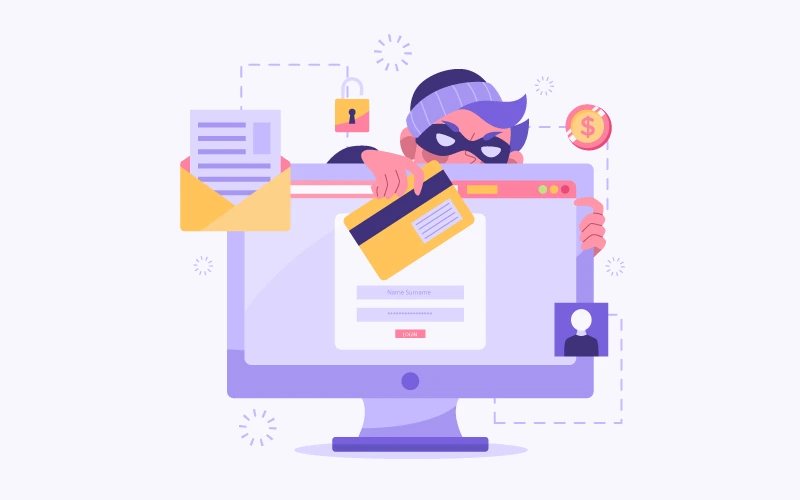
There are certain attacks that target WooCommerce stores which are hard to identify. One of the most common of these type of attack is called Card Attack.
Bots exploit the WordPress REST API by making direct API calls to WooCommerce checkout endpoints like /wp-json/wc/store/checkout, completely bypassing traditional security measures like reCAPTCHA.
They use stolen credit card lists to test which cards work by submitting multiple small-value orders directly through the API, leaving no referrer data in logs and avoiding the actual checkout page entirely.
They use generic names and email addresses such as John Doe jdoe7716@gmail.com, and these look legitimate at first sight.
The fix is to disable checkout via the REST API by adding code to your functions.php file or using the Code Snippets plugin to block requests to the WooCommerce API endpoints. This prevents bots from using the API while still allowing legitimate API integrations if needed.
You may find the code snippets at my other article on Effective WooCommerce Fraud Prevention Against Bot Transactions and Card Attacks
Additionally, you can use Cloudflare’s custom security rules to block or challenge requests containing /wp-json/wc/store/checkout paths.
Creating Regular Backups for Disaster Recovery
Regular backups are essential for protecting your WooCommerce store. If a security breach or technical failure occurs, backups let you restore your site quickly without losing customer data or sales history.
Store your backups off-site, not just on your server. If a hacker gains access to your hosting account, they could delete backups stored there.
Off-site backups, whether on cloud storage like Dropbox, Google Drive, or a backup service, remain safe and accessible even if your server is compromised. This protection also covers you against hardware failures or issues on your hosting provider’s end that could cause data loss.
UpdraftPlus plugin is my number one choice for creating and restoring backups for any type of WordPress website.
Finally, regularly test backups to ensure that they are complete and functional.

Wrapping Up
WooCommerce security is a diverse topic that requires careful implementation of multiple layers of protection.
There’s no single solution that will secure your store. Instead, you need a combination of strong passwords, regular updates, security plugins, fraud prevention tools, and best practices like backups and SSL certificates.
The good news is that most of these measures are free or affordable, and they significantly reduce your risk of being hacked or losing customer data.
Start by implementing the essentials. SSL certificates, login protection, and security plugins. Then, add more advanced tools as your store grows. Remember that security is an ongoing process, not a one-time setup.
Stay vigilant, keep your software updated, monitor for suspicious activity, and educate yourself on new threats. By taking these steps seriously, you’ll protect your customers, your revenue, and your business reputation.
List of Recommended Plugins, Payment Gateways and Services
Security plugins:
- Wordfence
- Sucuri
- Malcare
- Limit Login Attempts Reloaded
- WPS Hide Login
- Disable XML-RPC
Backup plugins:
- UpdraftPlus
- Duplicator
Cookie consent plugins:
- CookieYes
- iubenda
Transactional mail services:
- SMTP2GO
- Brevo
CDN and Web Application Firewall (WAF):
- Cloudflare
WordPress support and speed optimization:
Hosting providers:
- Site Ground
- Scala Hosting
Payment Gateways:
- Stripe
- PayPal
- Square
