

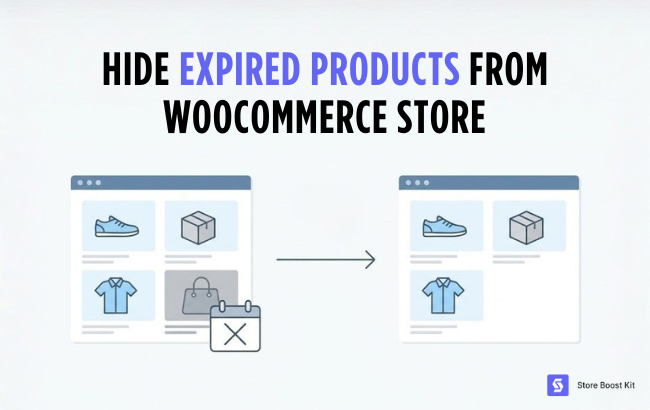
An e-commerce store is just like a walk-in physical shop. If you see an expired product on a store shelf, you immediately lose trust in that shop. That’s also how customers feel when they see expired products in your WooCommerce catalog when you forget to hide expired products from your store.
Table of Contents
Thus, it is crucial to hide outdated/expired products from your online store to keep your business running with trust and reputation.
With that said, let’s dive into this write-up and discuss exactly how to hide expired products from the WooCommerce store.
How to Hide Expired Products from WooCommerce Store
Tracking and hiding every old item by yourself takes too much time. So, the best way to do it is to automate the process using an effective WooCommerce plugin. For this, we’re going to use the Product Expiry Manager for WooCommerce plugin to demonstrate the steps.
Here’s how to hide expired products from your WooCommerce store:
Step 1: Install the Plugin
- Go to your WordPress dashboard and select Plugins > Add plugin.
- Upload the product expiry manager plugin zip file and press the Install Now button.
- Install the Product Expiry Manager for WooCommerce plugin by StoreBoostKit.
- Activate the plugin.
Step 2: Set up the Plugin
- Scroll down and hit Continue.
- Enter your license key in the designated box and select Activate.
- Click on Continue.
- Set the Default Expiry Period from the designated box.
- Select the dropdown menu from the Action on Expiry section and choose your preferred option.
- Click on Save and hit Continue.
- Select Finish to end the setup process.
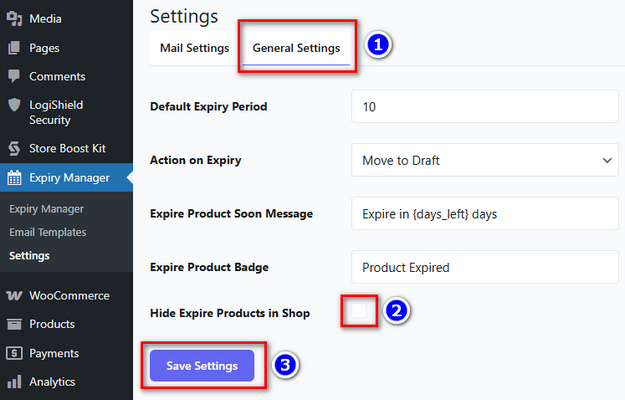
Step 3: Enable the Option to Hide Expired Products
- Go back to your WordPress dashboard and select Expiry Manager from the left side panel.
- Click on Settings > General Settings.
- Tick the box for Hide Expired Products in Shop.
- Click on Save Settings.
That’s it. Now all your expired products will be hidden from the storefront.
Why You Should Hide Expired Products from WooCommerce Store
Keeping your online store clean is just as important as keeping a real-life shop tidy. When you keep expired or out-of-stock items on your website, it causes problems for both you and your shoppers. Taking the time to clear out the clutter makes a huge difference to your credibility.
Here’s why you should hide expired products from WooCommerce:
- Builds Customer Trust: Shoppers feel frustrated when they find something they like, only to realize it is no longer available or has expired. Hiding dead items keeps your store looking professional and reliable.
- Improves the Shopping Experience: A clutter-free store makes it super easy for people to browse and find exactly what they want without clicking on dead ends.
- Boosts Search Engine Rankings: Search engines like Google prefer websites that are helpful. Removing old pages stops search engine bots from wasting time on things you no longer sell. This improves your SEO and helps you boost your Google ranking.
- Prevents Accidental Sales: If you sell items with real expiration dates, like event tickets or food, hiding them automatically prevents people from buying items that have expired. It saves your reputation.
- Cleans Up Your Dashboard: Moving old items out of the way makes it much simpler for you to manage your active inventory behind the scenes.
Taking a few minutes to set up these automatic rules saves you a lot of headaches later on. A neat, up-to-date catalog leads to happier buyers and a much smoother-running business.
Best Plugins to Hide Expired Products in WooCommerce
Automating your product lifecycle saves time and keeps your storefront clean. And for that, selecting the right plugin is crucial for maintaining seamless store automation and a flawless user experience.
So, here are the top 3 WordPress plugins to hide expired products in a WooCommerce store:
1. Product Expiry Manager for WooCommerce (Store Boost Kit)
Product Expiry Manager by Store Boost Kit is the premier choice for handling time-sensitive inventory. It automates your product visibility using reliable background scheduling. Thus, ensuring your site’s speed is never affected.
You can set items to expire on a specific date or after a countdown with this lightweight plugin. Once expired, the plugin automatically changes the product status to “Draft,” moves it to the trash, or completely hides it from the catalog.
It even sends automated email reminders before expiration.
Pricing: Premium only, starting around $49/year.
2. PublishPress Future
Originally known as Post Expirator, this versatile plugin works with both standard WordPress posts and WooCommerce products.
It allows you to set specific expiration dates and times. When the time arrives, it can automatically change the product status to draft, make it private, delete it, or remove it from specific categories.
This effectively hides the item from your main store layout without manual effort.
Pricing: Free core plugin; Pro version starts around $69/year.
3. Product Expiry for WooCommerce (Webcodingplace)
Product expiry plugin from Webcodingplace offers a straightforward way to manage perishable goods or limited-time promotional offers. It lets you set precise expiration dates and automatically moves expired items to drafts or marks them as out of stock.
A standout feature is its ability to display the expiration date on the product page and in customer order emails. This provides clear communication for physical goods.
Pricing: Free.
4. Expiry Dates for WooCommerce (Soft79)
Designed specifically for stores selling perishable items, Expiry Dates for WooCommerce focuses heavily on inventory management tied to expiration dates.
It allows you to automatically hide items from your catalog when they expire, or even a set number of days before or after the date. This premium WordPress plugin also supports multiple expiry dates per product batch and can automatically apply discounts to items nearing their expiration.
Pricing: Premium only, starting around $49/year.
Frequently Asked Questions
Q: How to hide product count in WooCommerce?
A: You can hide the product count in WooCommerce by unchecking the “Show product counts” option located within the Appearance > Customize > WooCommerce > Product Catalog settings menu.
Q: How do I hide out-of-stock products in WooCommerce?
A: To automatically hide out-of-stock products, navigate to WooCommerce > Settings > Products > Inventory and check the specific box labeled “Hide out of stock items from the catalog.”
Q: Will the Product Expiry Manager plugin slow down my WooCommerce site?
A: No. The plugin is highly optimized for performance and uses background WordPress CRON tasks to monitor expirations independently. This doesn’t affect your live page load times.
Wrapping Up
Keeping your online shop clean is super important. And using the Product Expiry Manager tool does all that hard cleaning work for you.
By hiding old items, you keep your shoppers happy, make your website fast, and keep your business organized. So follow this guideline to spend less time cleaning your store and more time focusing on your business!
